
In the ever-evolving landscape of website building, feeling lost can be easy. But what if there was a platform that was both powerful and approachable? Enter GoDaddy Builder: a versatile and user-friendly solution for crafting stunning websites that get noticed.No matter who you are – a seasoned business owner, a budding entrepreneur, or a creative mind with a story to tell – GoDaddy Builder empowers you to bring your vision to life online. This Ultimate Guide is your one-stop shop for mastering GoDaddy Builder in 2025.We’ll take you on a journey, from the initial setup process to optimizing your site for search engines. This comprehensive guide equips you with all the knowledge you need to create a professional website with GoDaddy Builder, without needing a coding degree. Get ready to take control and build a website that reflects your brand and captivates your audience.
GoDaddy Builder Ultimate Guide in 2026 (Table of Contents)
- Introduction to GoDaddy Builder
- Signing Up and Choosing a Plan
- Selecting a Template
- Customizing Your Design
- Adding Functionality with GoDaddy Apps
- Optimizing for SEO
- Mobile Optimization
- Publishing Your Site
- Managing Your Site
- Getting Support
- FAQ
1. Introduction to GoDaddy Builder

GoDaddy Builder, formerly Websites + Marketing, throws open the doors to professional website creation for everyone. This user-friendly platform empowers anyone, regardless of technical background, to build a website that looks sharp and functions flawlessly.At the heart of GoDaddy Builder lies its intuitive drag-and-drop interface. No coding experience? No problem! This visual approach lets you effortlessly add, remove, and rearrange elements on your web pages just by using your mouse.It’s like building with digital building blocks, allowing you to craft the exact layout you envision.But GoDaddy Builder doesn’t stop at drag-and-drop. It provides a rich library of customizable templates to jumpstart your creative process. These designer-made layouts span a wide range of industries, from restaurants and photography to e-commerce and professional services.Each template offers a strong foundation, but you can easily personalize it with your colors, fonts, and images to make your brand shine through.GoDaddy Builder understands that comfort levels with website creation vary. That’s why it caters to both beginners and seasoned users. Complete beginners can hit the ground running with the pre-designed elements and user-friendly interface.For those with more experience, GoDaddy Builder offers extensive customization options to delve deeper and create a truly unique website.In essence, GoDaddy Builder acts as a bridge. It eliminates the need for complex coding while empowering users to build visually appealing and functionally sound websites. This makes it an ideal platform for anyone who wants to take control of their online presence and create a website that reflects their vision.
2. Signing Up and Choosing a Plan
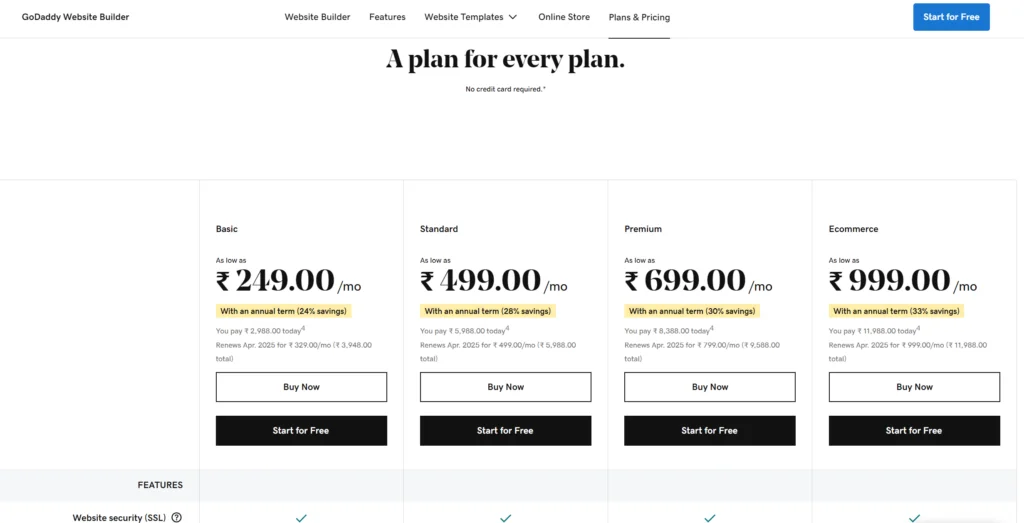
The text you provided details a different section entirely, which is the account creation process for GoDaddy Builder. While informative, it doesn’t directly connect to the explanation of GoDaddy Builder’s features.Here’s how we can integrate the signup process smoothly:Ready to build your dream website? Let’s walk you through the simple signup process for GoDaddy Builder.Head to the GoDaddy Website: Visit the GoDaddy website and navigate to the Website Builder section.
Tip: GoDaddy Builder often offers promotional pricing for their plans, so be sure to check for any deals before you sign up.Once you’ve chosen your plan and created your account, you’ll be ready to unleash your creativity and build a stunning website with GoDaddy Builder’s user-friendly tools!This revised text connects the signup process to the previously explained features, creating a more cohesive flow for your blog.
3. Selecting a Template
Ready to build your dream website? Let’s walk you through the simple signup process for GoDaddy Builder.
Choosing the Right Plan: When making your selection, consider these factors:
By following these steps, you’ll be well on your way to crafting a website that looks great and functions flawlessly!
4. Customizing Your Design
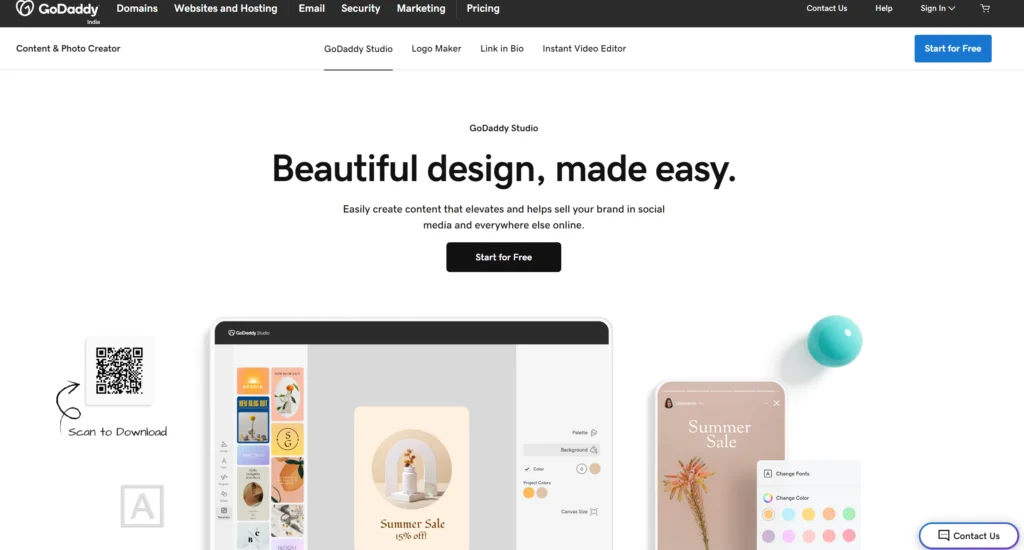
It’s time to unleash your creativity and personalize your website using GoDaddy Builder’s intuitive design features. Here’s a breakdown of the customization process:
Drag-and-Drop Editing:
GoDaddy Builder shines with its user-friendly drag-and-drop interface. This eliminates the need for coding knowledge and empowers you to effortlessly:
- Add elements like text boxes, images, buttons, and video players to your web pages.
- Move these elements around freely to create your desired layout.
- Resize and arrange elements to achieve a visually balanced and cohesive design.
Content Management:
GoDaddy Builder provides built-in content management tools that allow you to:
- Edit the text content directly on your web pages.
- Upload your images or choose from GoDaddy’s image library to add visual interest.
- Replace the placeholder text with your unique content to personalize your website’s message.
Design Customization Options:
Beyond content, GoDaddy Builder offers a variety of design customization options to make your website truly your own. You can:
- Change the font styles and colors to match your brand identity.
- Adjust background colors and textures to create a specific mood or atmosphere.
- Customize button styles and hover effects to enhance user experience.
With drag-and-drop editing, content management, and design customization features, you can transform your chosen template into a unique and professional website that reflects your brand and captivates your target audience.
5. Adding Functionality with GoDaddy Apps
The previous section about GoDaddy Apps can be improved for clarity and conciseness. Here’s a revised version:
Boost Functionality with GoDaddy Apps
GoDaddy Builder goes beyond basic website creation by offering a marketplace of apps. These handy add-ons let you extend your website’s functionality and cater to specific needs.
App Variety: The GoDaddy App store offers a vast selection, including:
- E-commerce Tools: Turn your website into a fully functional online store with features like product listings, shopping carts, and secure payment processing.
- Social Media Integration: Connect your website to your social media accounts to expand your reach and encourage visitor engagement.
- Analytics Tools: Gain valuable insights into your website’s traffic and visitor behavior. This data can help you optimize your website for better performance.
- Appointment Booking: Simplify scheduling for your visitors by integrating an appointment booking app.
- And More: The GoDaddy App Store offers a plethora of other apps to enhance various aspects of your website, such as email marketing, live chat functionality, and SEO optimization.
Exploring the Apps: Browse the GoDaddy App Store to discover the apps that align with your website’s goals and target audience. Adding these functionalities can significantly improve the visitor experience and make your website more successful.
6. Optimizing for SEO
SEO optimization within GoDaddy Builder. Here’s how we can expand on them:
Climbing the Search Engine Ladder: SEO with GoDaddy Builder
In today’s digital landscape, ranking high in search engine results is essential for attracting organic traffic. The good news is, that GoDaddy Builder equips you with tools to optimize your website for Search Engine Optimization (SEO).
Built-in SEO Features:
GoDaddy Builder offers functionalities that streamline the SEO process:
- Meta Tag Management: Easily customize meta titles and descriptions, which are crucial snippets of information displayed in search results. Optimize these with relevant keywords to entice users to click on your website.
- Image SEO: GoDaddy Builder allows you to add descriptions to your images, including relevant keywords. This helps search engines understand the content of your images and can improve your website’s ranking for image-based searches.
- URL Structure Control: GoDaddy Builder provides some control over your website’s URL structure. Ideally, URLs should be clear, and concise, and incorporate relevant keywords for better SEO.
Remember: Effective SEO goes beyond built-in features.
- Keyword Research: Identify relevant keywords that your target audience is likely to search for. Use these keywords strategically throughout your website content, including titles, headings, and body text, while maintaining a natural reading flow.
- High-Quality Content: Search engines prioritize websites that offer valuable and informative content. Create engaging and relevant content that resonates with your target audience.
- Consistent Updates: Regularly update your website with fresh content to keep visitors engaged and signal activity to search engines.
By leveraging GoDaddy Builder’s SEO features and implementing these additional SEO practices, you can significantly increase your website’s visibility in search engine results and attract a wider audience.
7. Mobile Optimization
Mobile Optimization that incorporates the importance of responsive design:
Ensuring a Seamless Mobile Experience
In today’s mobile-driven world, a website that functions flawlessly on smartphones and tablets is no longer a luxury, it’s a necessity. GoDaddy Builder understands this, which is why all their website templates are built with responsive design.
Responsive Design Explained:
Responsive design ensures your website adapts automatically to fit the screen size of any device, whether it’s a desktop computer, a tablet, or a smartphone. This eliminates the need for users to pinch, zoom, or scroll excessively, resulting in a significantly improved user experience for mobile visitors.
Go the Extra Mile:
While GoDaddy Builder’s responsive templates provide a solid foundation, there’s always room for optimization:
- Mobile Testing: Test your website on various mobile devices to identify any potential issues, such as slow loading times, buttons that are too small to click easily, or text that’s difficult to read.
- Prioritize Content: Mobile users have limited screen space. Consider prioritizing the most important content for mobile users and ensure it’s displayed prominently.
- Simplify Forms: Complex forms can be frustrating to complete on mobile devices. Keep forms short, use clear labels, and make buttons large and easy to tap.
By following these practices, you can ensure your GoDaddy Builder website offers an exceptional experience for mobile users, keeping them engaged and coming back for more.
8. Publishing Your Site
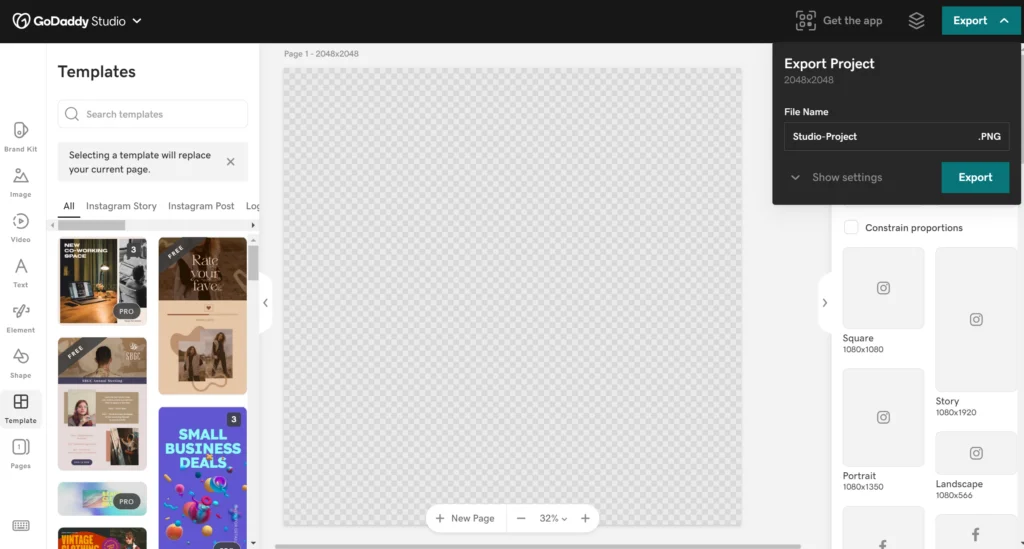
Publishing process in GoDaddy Builder:
Taking Your Website Live
When you’re thrilled with your website’s design, content, and mobile functionality, it’s time to share it with the world! GoDaddy Builder’s user-friendly interface streamlines the publishing process:
- Effortless Publishing: With just a few clicks, you can publish your website and make it accessible on the internet. GoDaddy Builder takes care of the technical aspects, ensuring your website is live and ready for visitors.
- Preview Before Publishing: Not quite ready to unleash your website to the world? No problem! GoDaddy Builder allows you to preview your website beforehand. This lets you double-check everything looks perfect and functions as intended before hitting the publish button.
Pro Tip: Once your website is published, remember it’s not set in stone. GoDaddy Builder allows you to continue editing and updating your website content as needed. This ensures your website stays fresh and relevant for your visitors.
9. Managing Your Site
Here’s how GoDaddy Builder empowers you to monitor and optimize your online presence:
Maintaining and Monitoring Your Website
The journey doesn’t end after hitting publish. GoDaddy Builder equips you with tools to manage and monitor your website’s performance:
- Built-in Analytics: Gain valuable insights into your website’s performance through GoDaddy Builder’s built-in analytics tools. Track key metrics such as:
- Visitor Traffic: See how many visitors are coming to your website and where they are coming from.
- Page Views: Track how many times individual pages on your website are viewed.
- Bounce Rates: Identify how many visitors leave your website after viewing only one page.
By analyzing this data, you can understand how visitors are interacting with your website. This knowledge empowers you to make informed decisions about improvements, such as:
* Optimizing content for better engagement
* Refining your website's structure for improved navigation
* Implementing features that address visitor needs
GoDaddy Builder’s management and analytics tools, you can keep your website performing at its best and continuously attract new visitors.
10. Getting Support
Support options available through GoDaddy Builder:
When You Need Help
GoDaddy understands that even with a user-friendly platform, questions or hurdles can arise. They offer a comprehensive support system to ensure you’re never left stranded:
- GoDaddy Help Center: A treasure trove of resources awaits you at the GoDaddy Help Center. Explore a vast collection of articles, tutorials, and frequently asked questions (FAQs) that address a wide range of topics related to GoDaddy Builder and website creation in general. Search for specific keywords or browse by category to find solutions to common issues.
- Live Customer Support: Sometimes, a personalized touch is preferred. GoDaddy offers live customer support via chat or phone. Connect with a GoDaddy representative who can answer your specific questions and provide tailored assistance.
Remember: Don’t hesitate to leverage GoDaddy’s support system. Their knowledgeable representatives are there to empower you to create and manage your website with confidence.
11. FAQ
1. How can I use GoDaddy Builder to create an online store in 2026?
To create an online store with GoDaddy Builder, start by selecting a template that includes e-commerce features. Customize your template to match your brand, and then add products to your store. GoDaddy offers built-in tools for managing inventory, processing payments, and tracking orders, making it easy to create and manage an online store.
2. What are the key SEO strategies for GoDaddy websites in 2026?
Key SEO strategies for GoDaddy websites include optimizing your site’s content for relevant keywords, creating high-quality, original content, and optimizing meta tags and descriptions. It’s also important to regularly update your site with fresh content and monitor your site’s performance using GoDaddy’s built-in analytics tools.
3. Is there a way to integrate third-party apps and services with GoDaddy in 2026?
Yes, GoDaddy offers integrations with a variety of third-party apps and services through its App Market. You can use these integrations to add additional functionality to your GoDaddy website, such as email marketing tools, customer relationship management (CRM) systems, and social media integrations.
4. Can I use custom code on my GoDaddy website in 2026?
Yes, GoDaddy allows you to use custom code on your website to add custom features and functionality. You can add custom code using the Code Editor feature in the GoDaddy editor. However, it’s important to note that using custom code may require a higher level of technical expertise and could affect your site’s performance if not implemented correctly.
5. How can I track my GoDaddy website’s performance in 2026?
You can track your GoDaddy website’s performance using GoDaddy’s built-in analytics tools. These tools provide insights into visitor traffic, page views, bounce rates, and more. You can use this data to identify areas for improvement and make informed decisions about how to optimize your site for better performance.
6. Can I sell digital products on my GoDaddy website in 2026?
Yes, GoDaddy allows you to sell digital products such as ebooks, music, and videos on your website. You can set up digital products in your store and deliver them to customers electronically after purchase. GoDaddy handles the digital delivery process, making it easy to sell digital products online.
7. How can I improve my GoDaddy website’s loading speed in 2026?
To improve your GoDaddy website’s loading speed, optimize your images and videos for the web, enable lazy loading for images and videos, and minimize the use of custom code. You can also use GoDaddy’s built-in performance optimization tools to further improve your site’s loading speed.
8. Can I use a custom domain name with my GoDaddy website in 2026?
Yes, you can use a custom domain name with your GoDaddy website. GoDaddy offers domain registration services, allowing you to purchase a custom domain name directly through GoDaddy. You can also use a domain name you’ve purchased from a third-party domain registrar with your GoDaddy website.
9. How can I create a blog on my GoDaddy website in 2026?
To create a blog on your GoDaddy website, start by adding a blog page to your site. Then, customize the layout and design of your blog page to match your branding. You can then start creating and publishing blog posts using GoDaddy’s built-in blogging tools.
10. Can I use GoDaddy to create a membership site in 2026?
Yes, GoDaddy offers features that allow you to create a membership site. You can restrict access to certain pages or content on your site to members only, and you can set up membership plans with different levels of access. GoDaddy also offers tools for managing member accounts and collecting membership fees.